
GSA – Mapping varying loads on 2D elements
Face loads on 2D do not have to be constant: you can set the load to vary across the face.
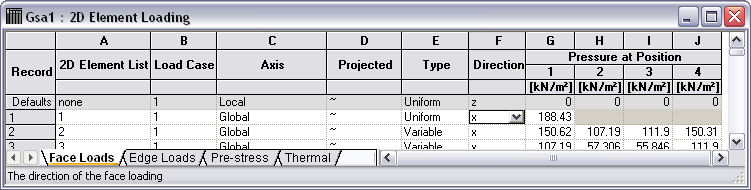
Loads such as hydrostatic vary with depth, so it can be quite involved to calculate and apply them manually. In GSA you have some options that will help.
Create and Split
The essence of this method is that if you split an element with varying loads, they split as well. If we take this example of a single 2D element with a varying load set to something at the base and nothing at the top
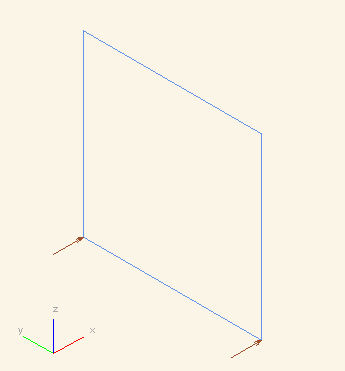
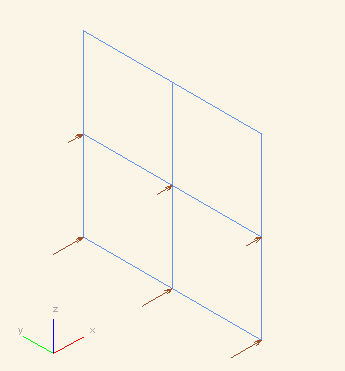
And then use the Sculpt | 2D Element Operations | Split Quad Elements command (having first selected it of course), and break it down into smaller pieces, then the loads adjust accordingly.
Sculpt
A more flexible method is to apply the loads once the geometry is created using the Sculpt commands.
If we take this more complex (auto-generated) example, calculating and applying the varying loads is involved.
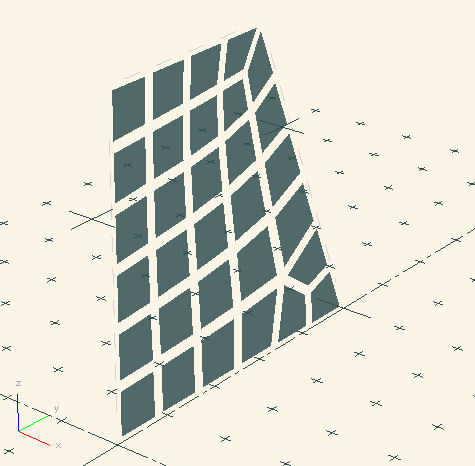
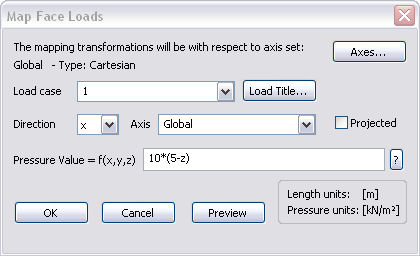
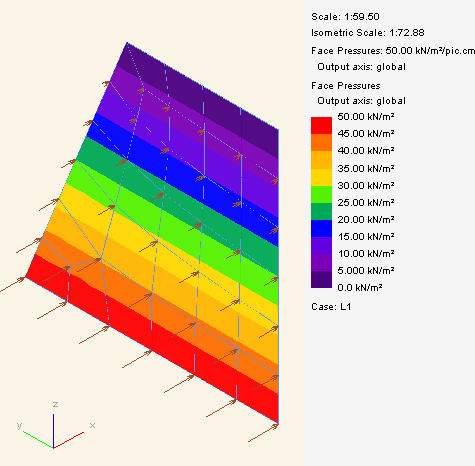
If we select all the elements though and use Sculpt > Create Element Loading > Map Face Loads on to 2D Elements then GSA can calculate the forces for you. In this particular example the wall is 5m high, so we want the hydrostatic load to vary from 50 kN/m2 at the base (z = 0) to zero at the top (z = 5). We can achieve this by setting the pressure to be 10*(5-z):
With the result:
The more general form of this formula is as follows:
- Z = elevation coordinate of any point on the wall
- z_top = level at top of wall
- z_bot = level at bottom of wall
- height = z_top – z_bot
- load = pressure at bottom of wall
So the mapping for a load that goes from Load at the bottom to zero at the top would be:
- load * (height – (Z – z_bot))